A WiFi QR code fails in one of two distinct ways, and knowing which one you have cuts the diagnosis in half:
- The camera does not react at all. This is a scanning problem: print, size, lighting or camera settings.
- The code scans, but the phone will not join. This is a data problem: the network details inside the code are wrong.
Establish which one you are dealing with first, then work down the relevant list.
1. You are testing on a phone that already knows the network
This is the most common false result, and it works in both directions. A phone already connected to the WiFi will appear to succeed even if your code contains a completely wrong password, it simply reconnects using what it already has.
Fix: on the test phone, open WiFi settings, select the network and choose Forget this network. Turn WiFi off. Now scan. This is the only test that tells you anything.
2. A single wrong character in the password
If the code scans and the phone reports an incorrect password, this is almost always the cause. The characters that catch people out, in order of frequency:
- Capital I, lowercase l, and the digit 1
- Capital O and the digit 0
- A trailing space copied in from a document
- Autocorrect capitalising the first letter on a phone keyboard
Fix: copy the password directly from your router's admin page rather than retyping it, and regenerate the code. Generate on a desktop where you can see the characters clearly.
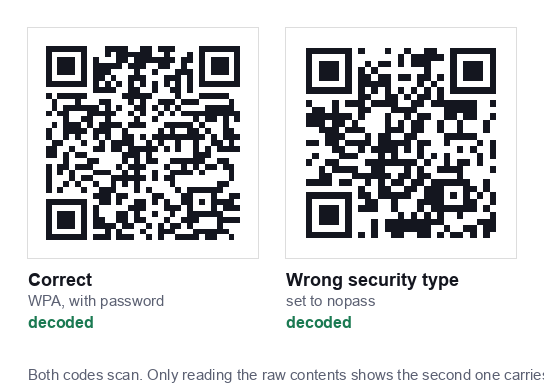
3. The wrong security type
The QR format includes the encryption type, and getting it wrong means the phone tries to connect the wrong way.
| Your router uses | Choose |
|---|---|
| WPA, WPA2 or WPA3 | WPA/WPA2 |
| WEP (very old routers) | WEP |
| No password at all | None |
A common error is choosing “None” for a network that does have a password, usually because the guest network felt open. If in doubt, choose WPA, it is correct for almost every network in use today.
4. The SSID does not match exactly
Network names are case sensitive and space sensitive. “Cafe Guest” and “Cafe_Guest” are different networks. So are “MyWiFi” and “Mywifi”.
Fix: copy the SSID from your router settings, not from the WiFi list on a phone, which sometimes displays a shortened or reformatted name. Watch for trailing spaces.
5. Print problems, size, contrast and quiet zone
If the camera does not react at all, the code itself is not being read. Three causes account for nearly all of it:
- Too small. Below roughly 2cm per side, phone cameras struggle. For a card read from a seated position, 4 to 5cm is the right range.
- Not enough contrast. Dark code on white works. A pale grey code, a code on a coloured background, or a code printed over a photo will fail unpredictably.
- No quiet zone. QR codes need clear white space around them, roughly four modules' width. Designers crop this away constantly, and it breaks scanning.
A fourth, sneakier cause: glossy lamination. Under overhead lighting, gloss produces a reflection exactly where the camera is trying to read. Matte finish solves it.
6. Camera or phone settings
On iPhone, QR scanning can be switched off: Settings → Camera → Scan QR Codes. If it is off, the camera sees the code and does nothing at all.
On Android the built in scanner varies by manufacturer and Android version. If the stock camera does not react, try Google Lens, which is available on essentially all modern Android devices.
Also worth checking: a dirty or damaged camera lens, and very low light. Both make dense codes unreadable while a simple code still works.
7. Network side issues that look like code issues
Sometimes the code is perfect and the network is the problem:
- 5GHz-only networks. Older devices cannot see them. If some guests connect and others cannot, enable the 2.4GHz band too.
- Hidden SSIDs. Joining a hidden network by QR is inconsistently supported. If you rely on QR access, leave the network visible.
- MAC filtering or a device limit. The phone joins, then drops. Check your router's connected device cap.
- A captive portal. Guest networks that require accepting terms in a browser will connect but show no internet until the portal is completed. A QR code cannot bypass that.
- The password was changed. Often by an ISP engineer during a visit. If a code worked for months and suddenly stopped, check this first.
A diagnostic order that saves time
- Does the camera react at all? No → print, size, contrast, camera settings.
- It scans but will not join? → password, SSID, security type.
- It joins but there is no internet? → captive portal, or the network itself is down.
- Works for some phones only? → 5GHz-only network, or very old devices.
Still stuck? Regenerate from scratch
If you have been editing and editing the same code, it is faster to start clean. Open the WiFi QR code generator, copy the SSID and password directly from your router admin page, choose WPA, generate, and check it on a handset you have first made to forget the network.
For the full setup process, including why you should generate the code for a guest network rather than your main one, see our guide on creating a WiFi QR code for an Airbnb. General questions are covered on the FAQ page.
How to prove the code itself is correct
If you have worked through the list and are still unsure whether the fault is the code or the network, there is a decisive test: scan the code with a plain QR reader app rather than the camera's WiFi handler. A general purpose reader will display the raw contents, which look something like this:
WIFI:T:WPA;S:MyNetwork;P:mypassword;;
Read the three values back against your router settings. T is the security type, S is the network name, P is the password. If all three are correct, the code is fine and the problem is on the network side, move to section 7. If any of them is wrong, regenerate.
This takes thirty seconds and removes all the guesswork about which half of the system is failing.
Problems specific to shared and public networks
Venues hit a set of issues that home users never see:
- Client isolation confusion. Guest networks often isolate devices from each other by design. That is correct behaviour and does not affect internet access, but it does break casting to a TV or printing.
- Bandwidth caps per device. Some business routers throttle or disconnect after a data threshold. The guest reconnects, then drops again, which looks like a faulty code but is not.
- Session time limits. Guest networks frequently expire sessions after a few hours, requiring a reconnect. Guests interpret this as the code having stopped working.
- Device count limits. A café with a 25 device cap will simply stop admitting phones at busy times, seemingly at random.
If your code works reliably in the morning and fails in the evening, look at device limits before you look at the code.
Preventing the problem next time
Once you have a working code, a few habits stop it breaking again:
- Save the source file. Keep the PNG somewhere you can find it, named for the network. Regenerating takes seconds when you have the details to hand and much longer when you do not.
- Print the password as text underneath. One line of small text turns a total failure into a minor inconvenience for the affected guest.
- Retest after any router work. Internet provider engineers frequently reset routers to factory defaults, which changes both the SSID and password.
- Do not laminate rigidly if the password rotates. Use a frame or holder you can swap a new card into.
- Check the card physically every month. Scratches through a corner marker break scanning even when the rest of the code looks fine.
For the complete setup process, including why the code should point at a guest network rather than your main one, see our guide to creating a WiFi QR code for a rental, and the print sizing guide if the failures are scanning related rather than password related.
Reading the error your phone actually shows
The wording differs between devices, but each message points at a specific cause:
| Message | What it usually means |
|---|---|
| “Incorrect password” / “Authentication error” | Wrong password or wrong security type in the code |
| “Unable to join the network” | SSID mismatch, or the network is out of range |
| “Connected, no internet” | Code is correct, the network or its internet connection is the problem |
| “Sign in to network” | A captive portal is in the way; the QR code cannot bypass it |
| “Obtaining IP address” then failing | DHCP exhausted or a device limit reached on the router |
| Nothing happens at all | The code is not being read, a scanning problem, not a data problem |
Router side settings that cause intermittent failures
When a code works sometimes, the cause is nearly always configuration rather than the code itself:
- DHCP pool too small. A router configured for 20 addresses stops admitting devices at busy times. Widen the range.
- Short lease times. Devices lose their address and have to renegotiate, which can look like a dropped connection.
- AP isolation misread as a fault. Guests can reach the internet but not cast to a TV or reach a printer. That is the setting working correctly.
- Band steering on older devices. Some phones handle the 2.4/5GHz switch badly. If a specific device keeps dropping, try separating the bands into distinct SSIDs.
- MAC address filtering left on from an earlier setup, silently blocking new devices.
- Firmware bugs. If everything is configured correctly and behaviour is erratic, check for a router firmware update before replacing hardware.
None of these are fixed by regenerating the QR code, which is why identifying whether the code or the network is at fault, using the raw contents test above, saves so much time.
Common questions
Why does my WiFi QR code say incorrect password?
Almost always a character typo or the wrong security type. Copy the password directly from your router admin page rather than retyping it, and choose WPA unless you know the network uses something else.
Can a WiFi QR code stop working on its own?
The code cannot change, but the network can. The usual cause is an internet provider engineer resetting the router, which changes both the network name and the password. If a code worked for months and suddenly stopped, check that first.
Why does it work on some phones but not others?
Usually a 5GHz only network that older devices cannot see, or a very dense code that older cameras struggle with. Enabling the 2.4GHz band fixes most of these.