What a WiFi QR code actually does
A WiFi QR code stores three pieces of information in a single scannable image: your network name (SSID), your password, and the security type your router uses. When a guest points their phone camera at it, the phone reads those three values and offers to join the network, no typing, no spelling out a password with capital letters and symbols, no handing over your phone.
This matters more than it sounds. Modern WiFi passwords are long and case sensitive by design. Reading one aloud to a guest, or writing it on a sticky note, is where most of the friction (and most of the failed attempts) come from. The QR code removes that step entirely.
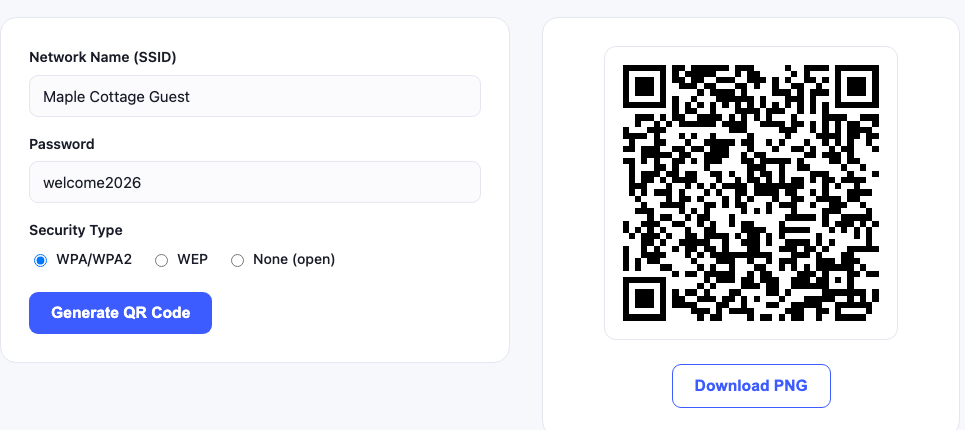
How to create your WiFi QR code
- Enter your network name exactly as it appears. The SSID is case sensitive. “HomeWiFi” and “homewifi” are two different networks as far as your phone is concerned.
- Type the password carefully. Watch for the characters people commonly confuse: capital I, lowercase l, and the digit 1; capital O and zero.
- Pick the right security type. Almost every router made in the last decade uses WPA/WPA2, that is the correct choice unless you know otherwise. Pick “None” only for a genuinely open network with no password.
- Generate and test before you print. Scan it with a phone that is not already connected to the network. A phone that is already on the WiFi will appear to work even if the code is wrong.
The one test that matters: turn WiFi off on a second phone, forget the network, then scan. If it joins, your code is correct. Testing on an already connected device tells you nothing.
Which security type should you choose?
| Security type | When to use it | How common |
|---|---|---|
| WPA / WPA2 / WPA3 | Standard home and business routers with a password | Almost all networks |
| WEP | Very old routers only, WEP is insecure and long deprecated | Rare |
| None (open) | Public networks with no password at all | Cafés, some lobbies |
If your router settings mention WPA3, still choose WPA here, the QR format treats WPA, WPA2 and WPA3 the same way, and phones handle the handshake themselves.
Who uses WiFi QR codes, and how
Airbnb and short term rental hosts
This is the single most common use. Guests arrive tired, often late, and the first thing they want is internet. A framed WiFi QR code on the kitchen counter or inside the welcome book removes a support message you would otherwise get at 11pm. Many hosts also add the code to the digital guidebook they send before check in, so guests can connect the moment they walk in.
If you host multiple properties, generate a separate code for each one and label the printed card with the property name, mixing them up is a surprisingly easy mistake.
Cafés, restaurants and bars
A small card on each table, or a sticker near the till, stops staff from repeating the password fifty times a shift. Keep the printed code at least 3cm across if it sits on a table, since customers will scan it from a seated distance with the phone at an angle.
Offices and coworking spaces
Guest networks in offices are usually separate from the internal network, and visitors need them for exactly one meeting. A code in the reception area or the meeting room saves the receptionist from being the password desk.
Home use
Even at home, a small printed code inside a kitchen cupboard means visiting family never has to ask. It also means you can use a genuinely strong password instead of a short one chosen because it is easy to dictate.
Common problems and how to fix them
The code scans but the phone will not join
The usual cause is a password typo or the wrong security type. Regenerate the code, checking each character. Also confirm the network is on 2.4GHz or 5GHz in a band the phone supports, some older devices cannot see 5GHz-only networks.
The camera does not recognise the code at all
Check the print. Codes printed too small, in light grey, or on a glossy surface that reflects light are the usual culprits. Keep a clear white margin (the “quiet zone”) around the code, roughly the width of four modules, and never print the code smaller than about 2cm per side.
It works on Android but not iPhone (or the reverse)
Both platforms read the same format natively, so a code that works on one and not the other almost always points to a camera or scanning permission setting rather than the code itself. On iPhone, check Settings → Camera → Scan QR Codes is enabled.
I changed my WiFi password and the code stopped working
That is expected. The password is baked into the image itself, so a new password means a new code. Generate a replacement and swap the printed card. This is also why you should not laminate a code you expect to change.
Is it safe to share your WiFi this way?
A WiFi QR code contains your password in plain text, anyone who can photograph the code can extract the password. That is fine for a code inside your home or in a private guest room, but think twice before putting one in a street facing window.
For businesses, the right answer is a separate guest network. Most modern routers can broadcast a guest SSID that has internet access but cannot see the devices on your main network. Put the QR code on the guest network only, and your main network stays private regardless of who scans what.
On our side, nothing you type here is transmitted anywhere. The code is built in your browser using JavaScript, so your password never reaches a server, see our privacy policy for the specifics.
Printing tips that actually change the scan rate
- Size: 2cm minimum for close range scanning; 4 to 5cm for a table card; larger for anything read from across a room.
- Contrast: dark code on a white background. Coloured or low contrast codes fail far more often than people expect.
- Quiet zone: leave white space around the code. Cropping tight to the edge breaks scanning.
- Surface: matte beats gloss. Glossy lamination creates reflections that block the camera.
- Include the password as text too. A small line of text under the code covers the rare guest whose camera app will not cooperate.
Frequently asked questions
Do I need an app to scan a WiFi QR code?
No. iOS and Android both read WiFi QR codes from the built in camera app. Open the camera, point it at the code, and tap the banner that appears.
Does the WiFi QR code expire?
No. The data lives inside the image, not on a server, so the code keeps working for as long as the network name and password stay the same.
Can I add a logo to the code?
Logos reduce the scannable area and increase failure rates, especially at small print sizes. For a functional code that guests must be able to scan first time, plain is better.
Can I use this for a hidden network?
Yes. Tick Hidden network and the code includes the H:true flag that tells a phone to look for a name it cannot see. Even so, joining a hidden network by QR is inconsistently supported across phones. If you rely on QR access, it is more reliable to leave the guest network visible.
Other QR codes you might need
If you are setting up a rental or a café, the WiFi code is usually not the only one worth printing. A URL QR code can point guests to your house manual, digital menu or review page. A vCard QR code shares your contact details in one scan. And a text QR code handles short instructions like bin day or checkout times. All of them are listed on our services page.
For background on the underlying standard, the QR code specification covers error correction levels and version sizing in detail.