Ask a satisfied customer to leave a review and most will genuinely mean to. Then they have to remember your business name, find it on Google, scroll past the map card, tap the right button, and write something, usually while walking out of the door. Somewhere in that chain, almost all of them drop out.
A QR code collapses those steps into one scan that opens the review box directly, with the star rating already waiting. This guide covers how to build it, where to put it, and the policy rules that stop a review push from damaging the listing you are trying to improve.
Step 1: Get your direct review link
You need the link that opens the review form itself, not your business listing. There are two reliable ways to find it.
From your Google Business Profile
- Sign in to your Google Business Profile and select the location.
- Look for Ask for reviews or Get more reviews.
- Copy the short link it gives you. It usually looks like
g.page/r/...followed by a code.
From Google Maps
Find your business on Google Maps, open the listing, choose Share, and copy the link. This gives you a listing link rather than a review link, workable, but it adds a tap. The Business Profile route is better because it lands the customer straight on the star selector.
Test the link before you print anything. Open it on a phone that is signed into a different Google account than yours. You should see the review box with stars, not your business dashboard. If you see a management screen, you copied the wrong link.
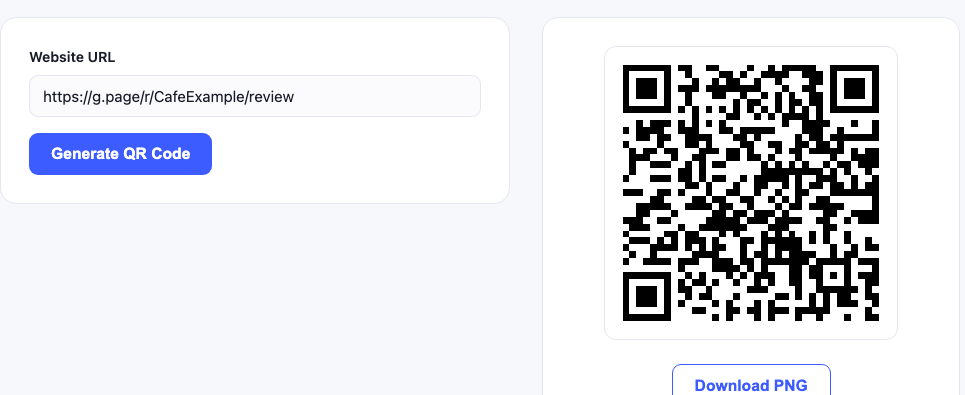
Step 2: Turn it into a QR code
Paste the review link into our URL QR code generator and download the PNG. Two things to note:
- Use the short
g.pagelink if you have it. Shorter data means a simpler pattern that scans more reliably at small sizes on a receipt or a counter card. - Use a static code. Your review link will not change, so there is no reason to depend on a subscription service that could stop working later. The reasoning is covered in our guide on static versus dynamic codes.
Step 3: Put it where the good feeling is
Placement matters more than design here, and the principle is simple: ask when the experience has just gone well, not before it has happened.
| Placement | Why it works | Size |
|---|---|---|
| At the till, facing the customer | The moment of payment, after the service is complete | 4 to 5cm |
| On the receipt | Goes home with them; they scan later when they have time | 2.5 to 3cm |
| On the payment tray or card machine | Unavoidable eye contact while they wait for the terminal | 3 to 4cm |
| On a thank you card in a delivery | Arrives with the product, at the point of satisfaction | 3cm |
| In a follow up email or invoice | Free, reusable, no printing | 150px on screen |
What does not work: a code on the table at the start of a meal, a code on the door on the way in, or a code buried on a menu page. The customer has nothing to say yet.
Step 4: Write the right words next to it
An unlabelled QR code gets ignored. The text beside it does most of the persuading, and the wording is where businesses most often break Google's rules without realising.
Good examples:
- "Enjoyed your visit? Scan to leave us a review. It takes 30 seconds."
- "We're a small team. A review really helps."
- "Tell us how we did."
Avoid:
- "Leave us a 5 star review", soliciting a specific rating is against Google's policy.
- "Scan for 10% off your next visit", incentivising reviews is prohibited and can get reviews removed or the listing penalised.
- Anything that suggests only happy customers should scan, review gating is explicitly against the rules.
The line that matters: you may ask for a review. You may not ask for a good review, offer anything in exchange, or filter who gets asked. Google enforces this, and the penalty falls on your listing rather than the customer.
Why review gating is a trap
A common setup is to send customers to a page that asks "How was your visit?", sending happy ones to Google and unhappy ones to a private feedback form. Vendors still sell this. It violates Google's review policies, which prohibit both incentivised reviews and selectively soliciting only positive ones.
Beyond the rules, it rarely works as intended. A perfect five star average with no critical reviews can also read as suspicious. A rating slightly below five, with reviews that describe specifics, tends to look more like a real business than a flawless record with nothing to say.
What to expect
Realistic numbers, so you can tell whether it is working:
- A well placed counter code typically converts a small single digit percentage of customers. That sounds low until you compare it with the near zero baseline of hoping people remember.
- Reviews arrive in bursts rather than steadily, busy days produce clusters.
- Mentioning it verbally roughly doubles the scan rate compared with the code sitting there silently. "If you have a second, the code on the counter really helps us" is enough.
Handling the reviews you get
Collecting reviews is half the job; responding is the half that affects how the listing performs.
- Reply to every review: positive and negative. Google's own guidance says responding to reviews shows you value them, and it is visible to everyone reading later.
- Answer criticism factually, not defensively. Future customers are reading your reply more closely than the complaint.
- Never argue. A calm, specific reply to a harsh review often reads better than the review itself.
- Report only genuine policy violations: fake reviews, spam, or content about a different business. Disagreement is not grounds for removal.
Troubleshooting
The code opens the listing, not the review box
You used the Maps share link rather than the Business Profile review link. Go back to your Business Profile and use the "Ask for reviews" link.
Customers say they scanned but nothing happened
Usually a print problem rather than a link problem: too small, low contrast, or glossy lamination reflecting the light. Our print sizing guide covers the fixes.
Reviews appear and then disappear
Google filters reviews it considers suspicious. Common triggers are several reviews from the same IP address (for example, customers using your own guest WiFi), or a sudden spike after months of nothing. Both resolve with steady, organic collection.
The link works for me but not for customers
Test while signed out or in a private window. Your own account sees an owner view that customers do not.
Other codes worth having at the counter
Most businesses that add a review code end up wanting two more: a WiFi code for guest access, and a vCard code so customers can save your number. If you run a venue, our café and restaurant guide covers the full set and where each one belongs.